Main Interface


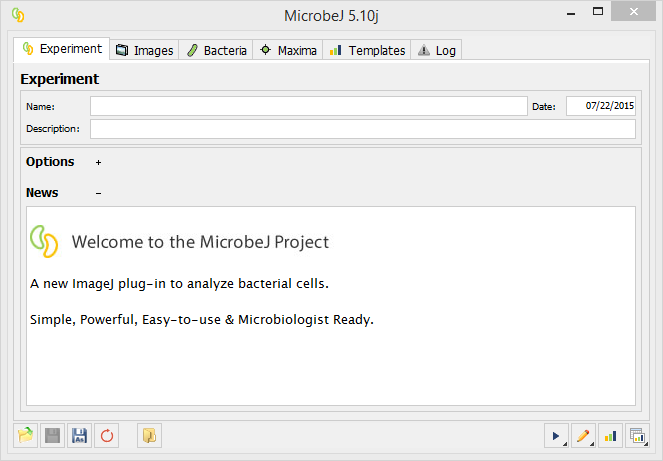
The main interface of MicrobeJ contains several tabs which allow the user to set up an experiment (Experiment), select or load a set of images (Images), define parameters for bacterial cell detection and analysis (Bacteria), detect fluorescent foci (Maxima), define and use templates (Templates), and track any errors that might arise during analysis (Log). Note that some of the tabs are only active once an image(s) has been loaded or when the related tab has been activated. This interface also contains several button located at the bottom of the window that are accessible no matter which tab you access.
 to load an existing set of settings such as “settings.xml”.
  to save the current settings at the previous location. This command is enabled when an existing set of settings has been loaded or saved at an existing location.
  to save the current settings as an .xml file at the specified location for future use.
  to reset settings to default
 to load the batch interface.
 to test the current settings on the active position of the selected Image. Scroll and press
  to test the current settings on all positions of the selected Image.
 to detect particles with the current settings and load the Manual Editing Interface. Scroll and press
  to load an empty Manual Editing Interface with the current settings.
 to detect and analyze particles and to display only the numerical or graphical outputs specified in the Template tab. This command is enabled when at least one active template has been selected in the Template tab.
 to detect and analyze particles and to display the numerical or graphical outputs specified in the Template tab and the raw data in a MicrobeJ Results Table (see Outputs). Scroll and press
  to detect and analyze particles and to display only the raw data in a MicrobeJ Results Table.
Created with the Personal Edition of HelpNDoc: Generate Kindle eBooks with ease